How to Split a Single cell or Row into Multiple Rows in Excel
In Excel, splitting the contents of one cell or the values in one row into multiple rows can make data easier to use in reports, databases, and other structured worksheets. This tutorial covers methods for splitting delimited text from a cell and reorganizing the values from a row.

| Method | Best for | Output | Availability |
|---|---|---|---|
| TEXTSPLIT | Splitting delimited text from one cell with a formula | One dynamic column containing the split values | Microsoft 365 and Excel 2024 |
| Kutools – Split Cells | Splitting one or multiple cells at the same time | Separate rows based on a selected delimiter | Kutools for Excel |
| Paste Transpose | Changing one horizontal row into one vertical column | One column containing multiple rows | Built into Excel |
| Kutools – Transform Range | Dividing one row into records with a specified width | Multiple rows and columns | Kutools for Excel |
Split text in a single cell into multiple rows
In the following example, the order details are stored in one cell and separated by slashes. The values need to be split into separate rows for Item, Quantity, Unit Price, and Date.
Use TEXTSPLIT to split a single cell into multiple rows
If you use Microsoft 365 or Excel 2024, the TEXTSPLIT function can split the contents of a cell into separate rows.
- Select the cell where you want to display the result. In this example, select B6.
- Enter the following formula and press Enter:
=TEXTSPLIT(A2,,"/")
The text in A2 is split into separate rows at each slash:

📝 Notes:
- TEXTSPLIT is available in Microsoft 365 and Excel 2024, including the corresponding Mac versions.
- Replace the slash in the formula with the delimiter used in your data.
Use Kutools to split cells into multiple rows
TEXTSPLIT is limited to supported Excel versions, and formulas may need to be entered separately for different source cells. The Split Cells feature in Kutools for Excel can split one or multiple selected cells into rows using a specified delimiter.
After installing Kutools for Excel, follow these steps:
- Select the cells containing the text you want to split.
- Click Kutools > Merge & Split > Split Cells.
- In the Split Cells dialog box, select Split to Rows. Select the required delimiter; in this example, select Other and enter a slash. Then click OK.

- Select the first destination cell and click OK.


Split text in a single row into multiple rows
If your values are already stored in separate cells across one row, use one of the following methods to arrange them vertically.
Use Paste Transpose to split a single row into multiple rows (single column)
Excel’s built-in Transpose Paste option can convert one horizontal row into one vertical column.
- Select the row and press Ctrl + C to copy it.
- Select the first destination cell.
- Right-click the cell and select Transpose under Paste Options.
📝 Note:
In Excel 2007, click Home > Paste > Transpose.
 →
→
Use Kutools to split a single row into multiple rows (multiple columns)
To divide one row into multiple rows while keeping several values in each output row, use the Transform Range feature in Kutools for Excel.
- Select the row, and click Kutools > Range > Transform Range.
- In the Transform Range dialog box, select Single row to range. Under Columns per record, select Fixed value and enter the required number of columns. Then click OK.

- Select the first cell of the destination range and click OK.


The row is divided into multiple rows and columns:

Kutools for Excel - Supercharge Excel with over 300 essential tools, making your work faster and easier, and take advantage of AI features for smarter data processing and productivity. Get It Now
Frequently Asked Questions
Why does the TEXTSPLIT formula use two commas before the delimiter?
The second argument specifies a column delimiter. Leaving it blank and entering the slash as the third argument tells TEXTSPLIT to return the results in separate rows.
Can I use a delimiter other than a slash?
Yes. Replace the slash in the TEXTSPLIT formula or select a different delimiter in the Kutools Split Cells dialog box.
Can I split multiple cells at the same time?
Yes. Kutools for Excel can split multiple selected cells using the same delimiter. The TEXTSPLIT example shown here processes one source cell at a time.
What is the difference between Split Cells and Transform Range?
Split Cells separates text within cells by a delimiter. Transform Range reorganizes values that already occupy separate cells in a row or column.
Will the results update if the source data changes?
TEXTSPLIT results update with the source cell. Paste Transpose and the Kutools methods create static results and must be run again after the source data changes.
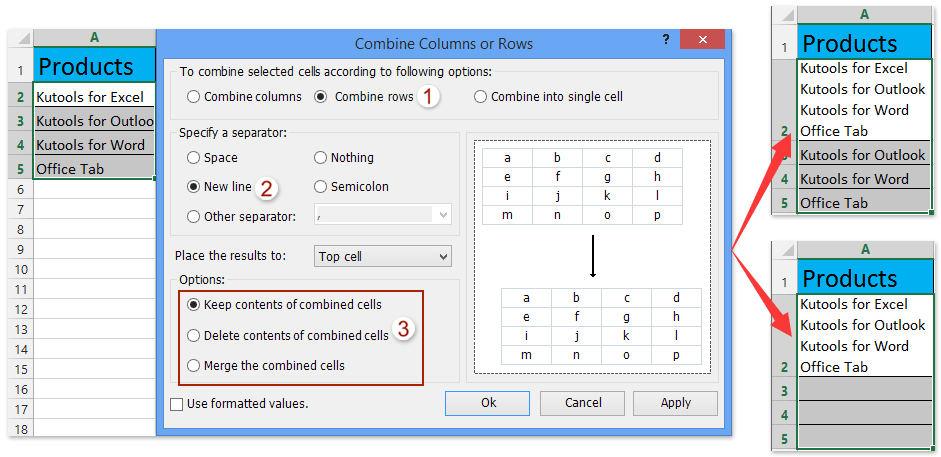
Kutools for Excel’s Combine Columns or Rows feature can combine multiple columns or rows into one column, row, or cell without losing data. It can also separate the combined values with line breaks.
Kutools for Excel - Supercharge Excel with over 300 essential tools, making your work faster and easier, and take advantage of AI features for smarter data processing and productivity. Get It Now
Video demonstration
Related articles
Best Office Productivity Tools
Supercharge Your Excel Skills with Kutools for Excel, and Experience Efficiency Like Never Before. Kutools for Excel Offers Over 300 Advanced Features to Boost Productivity and Save Time. Click Here to Get The Feature You Need The Most...
Office Tab Brings Tabbed interface to Office, and Make Your Work Much Easier
- Enable tabbed editing and reading in Word, Excel, PowerPoint, Publisher, Access, Visio and Project.
- Open and create multiple documents in new tabs of the same window, rather than in new windows.
- Increases your productivity by 50%, and reduces hundreds of mouse clicks for you every day!
All Kutools add-ins. One installer
Kutools for Office suite bundles add-ins for Excel, Word, Outlook & PowerPoint plus Office Tab Pro, which is ideal for teams working across Office apps.





- All-in-one suite — Excel, Word, Outlook & PowerPoint add-ins + Office Tab Pro
- One installer, one license — set up in minutes (MSI-ready)
- Works better together — streamlined productivity across Office apps
- 30-day full-featured trial — no registration, no credit card
- Best value — save vs buying individual add-in