How to remove leading and trailing spaces in Excel?
In the world of data management, tidiness is key. Yet, pesky leading and trailing spaces can often sneak into your Excel sheets, causing discrepancies and headaches. Fortunately, Excel offers handy tools to swiftly eliminate these unnecessary spaces, ensuring your data stays clean and accurate. In this article, we'll explore two efficient methods to remove leading and trailing spaces in Excel.
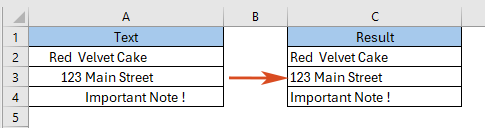
Using the TRIM function in Excel to remove leading and trailing spaces
Quickly remove all leading and trailing spaces with Kutools for Excel
Using the TRIM function in Excel to remove leading and trailing spaces
Here is the generic formula of TRIM function:
Step 1: Input the TRIM formula
In cell C2, apply the following formula, then press the Enter button.
=TRIM(A2)Step 2: Copy the formula down to below cells to get all results

Quickly remove all leading and trailing spaces with Kutools for Excel
Compare to the TRIMfunction, the "Removing Spaces" utility in Kutools for Excel provides a more flexible way to remove all leading and trailing spaces in Excel. You can directly remove the space in the cell without moving them into other cells. More importantly, you can also remove other types of spaces, such as excess spaces or all spaces within cells.
1. Select the cells that you want to modify. You can select some columns, rows or the entire worksheet.

2. Click "Kutools" > "Text" > "Remove Spaces", and check the "Leading & Trailing spaces" option in the popup "Remove Spaces" dialog. Click OK.

Now, you will see that all leading and trailing spaces have been removed instantly!

Related articles
Excel Remove Spaces: Leading, Trailing, Extra or All Spaces
This guide will introduce several methods to efficiently eliminate these superfluous spaces, ensuring the accuracy and integrity of your data.
How to find position of nth space in Excel string?
For instance, there is a list of strings, and each cell contains several words which separated by spaces, have you any methods to quickly find the position of first space from these strings as below screenshot shown? In this article, I introduce the tricks on easily find the position of nth space in Excel.
How to count the number of spaces before text string in Excel cell?
Sometimes, when you received a workbook from others, there may be some spaces before strings in the cells. Have you ever imaged to count the number of these leading spaces? Here, I introduce a formula to quickly count the number of leading spaces in cell.
How to insert / add space after every x characters in cells?
If you have multiple text strings in a list of worksheet, now, you want to insert space after every 3 or x characters in cells as following screenshot shown. How could you solve this problem in Excel quickly and easily?
The Best Office Productivity Tools
Kutools for Excel - Helps You To Stand Out From Crowd
Kutools for Excel Boasts Over 300 Features, Ensuring That What You Need is Just A Click Away...
Office Tab - Enable Tabbed Reading and Editing in Microsoft Office (include Excel)
- One second to switch between dozens of open documents!
- Reduce hundreds of mouse clicks for you every day, say goodbye to mouse hand.
- Increases your productivity by 50% when viewing and editing multiple documents.
- Brings Efficient Tabs to Office (include Excel), Just Like Chrome, Edge and Firefox.