How to hide all inactive worksheets in Excel? (Full guide)
Managing multiple worksheets in an Excel workbook can become cumbersome, especially when dealing with numerous inactive sheets. Hiding these inactive worksheets can help streamline your workflow and make navigating the active sheets easier. In this article, we’ll explore four different methods to hide all inactive worksheets in Excel.
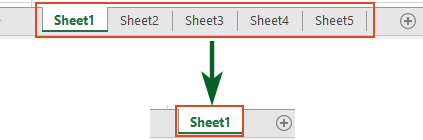
Hide all inactive worksheets with right click in Excel
Step 1: Select inactive worksheets
Hold down the Ctrl key and click on the tabs of all other worksheets that you want to hide. You can also use the Shift key to select a consecutive group of sheets.

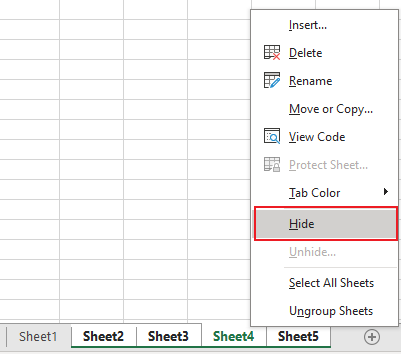
Step 2: Right click to hide inactive worksheets
Right click the selected sheets, and click Hide from the drop-down menu.
Result
Tip: This method is quick and effective but can be tedious if you have a large number of inactive sheets. If you would like to get an easier way, please use the Kutools for Excel method.
🌟 Instantly toggle all hidden sheets to be visible or invisible! 🌟
Save time and effort with Kutools for Excel's Toggle Hidden Worksheet Visibility feature! 🚀
With the handy Toggle Hidden Worksheet Visibility button provided by Kutools for Excel, you can use one click to show all hidden worksheets in the active workbook and click it again to toggle all hidden worksheets to be invisible. It's as quick as lightning! ⚡
📊 Kutools for Excel: Supercharge Excel with over 300 essential tools. Enjoy a full-featured 30-day FREE trial with no credit card required! 🚀
Download NowOne click to hide all inactive worksheet with Kutools for Excel
Kutools for Excel is a powerful add-in that provides advanced features to simplify many tasks in Excel, including hiding inactive worksheets. With just one click, all inactive worksheets will be hidden, leaving only the active one visible. It can save a lot of time and effort, especially with workbooks containing many sheets.
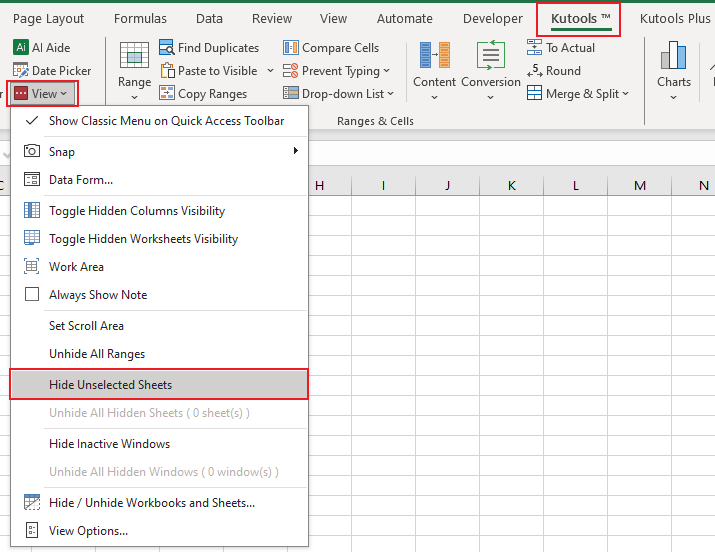
After installing Kutools for Excel, click Kutools > View > Hide Unselected Sheets to hide all sheets except the active sheet.
Result
All inactive worksheets are hidden at once.
Hide all inactive worksheet by using Format feature in Excel
Excel’s Format feature also allows you to hide inactive worksheets.
Step 1: Select inactive worksheets
Hold down the Ctrl key and click on the tabs of all other worksheets that you want to hide. You can also use the Shift key to select a consecutive group of sheets.
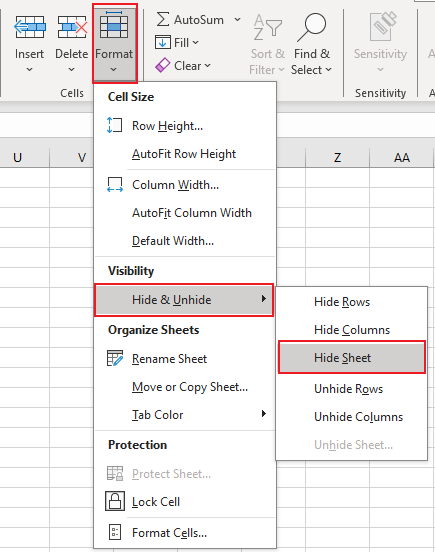
Step 2: Access Format feature to hide inactive worksheets
On the Home tab, click on Format in the Cells group. Under Visibility, select Hide/Unhide, then Hide Sheet.
Result
Tip: This method is quick and effective but can be tedious if you have a large number of inactive sheets. If you would like to get an easier way, please use the Kutools for Excel method.
Hide all inactive worksheets with VBA in Excel
For those comfortable with VBA (Visual Basic for Applications), creating a macro to hide all inactive worksheets can be an efficient method.
Step 1: Open the VBA module editor and copy the code
- Hold down the ALT + F11 keys in Excel, and it opens the Microsoft Visual Basic for Applications window.
- Click Insert > Module and paste the following code in the Module Window.
- VBA code: Hide all inactive worksheets
Sub HideInactiveSheets()
 'Updateby Extendoffice

    Dim ws As Worksheet

    For Each ws In ThisWorkbook.Worksheets
        If ws.Name <> ActiveSheet.Name Then
            ws.Visible = xlSheetHidden
        End If
    Next ws
End Sub
Step 2: Execute the code to get the result
After pasting this code, please press F5 key to run this code. All worksheets, except for the active (current) sheet, are hidden simultaneously.
Related articles
Quickly unhide columns in Excel – A step by step guide
In this tutorial, we will provide some tricks for unhiding all columns, specific columns, first column, and more.
How to hide or unhide a specific worksheet based on cell value in another sheet?
For example, when I enter the text “Yes” in the cell G1 of Sheet2, I want the Sheet1 to be hidden, and when I enter “No”, the Sheet1 to be displayed at once. How could I solve this problem in Excel?
How to use checkbox to hide or unhide worksheet in Excel?
Checkbox is a useful feature in Excel. Here I will show you how to use a checkbox to hide or unhide a specified worksheet in Excel.
How to hide or unhide columns based on drop down list selection in Excel?
In this article, we will show you a VBA method to hide or unhide columns based on drop down list selection in Excel.
Best Office Productivity Tools
Supercharge Your Excel Skills with Kutools for Excel, and Experience Efficiency Like Never Before. Kutools for Excel Offers Over 300 Advanced Features to Boost Productivity and Save Time. Click Here to Get The Feature You Need The Most...
Office Tab Brings Tabbed interface to Office, and Make Your Work Much Easier
- Enable tabbed editing and reading in Word, Excel, PowerPoint, Publisher, Access, Visio and Project.
- Open and create multiple documents in new tabs of the same window, rather than in new windows.
- Increases your productivity by 50%, and reduces hundreds of mouse clicks for you every day!
All Kutools add-ins. One installer
Kutools for Office suite bundles add-ins for Excel, Word, Outlook & PowerPoint plus Office Tab Pro, which is ideal for teams working across Office apps.





- All-in-one suite — Excel, Word, Outlook & PowerPoint add-ins + Office Tab Pro
- One installer, one license — set up in minutes (MSI-ready)
- Works better together — streamlined productivity across Office apps
- 30-day full-featured trial — no registration, no credit card
- Best value — save vs buying individual add-in
Table of contents
- Hide all inactive worksheets with right click in Excel
- One click to hide all inactive worksheet with Kutools for Excel
- Hide all inactive worksheet by using Format feature in Excel
- Hide all inactive worksheets with VBA in Excel
- Related articles
- The Best Office Productivity Tools
- Comments