Change date to American date format in Excel (Easy tutorial)
Working in a multinational corporation often involves dealing with data from various countries, each with its unique date formats. If you're in America and receive spreadsheets formatted with non-American date styles, it's crucial to convert these to formats you're familiar with. This article will guide you through the process of adjusting various international date formats to the American style in Excel, ensuring your data remains consistent and easily understandable across your organization.
Change date formats with the Format Cells feature
Quickly apply any date formats with Kutools for Excel
Change date formats with formula
Change date formats with the Format Cells feature
With the Format Cells feature, you can efficiently convert dates into the American format (typically mm/dd/yyyy), making the data easier to interpret for anyone based in the US or working with American reporting standards. This approach is well suited for datasets where Excel already recognizes the entries as valid dates, and no underlying data corruption or inconsistencies exist.
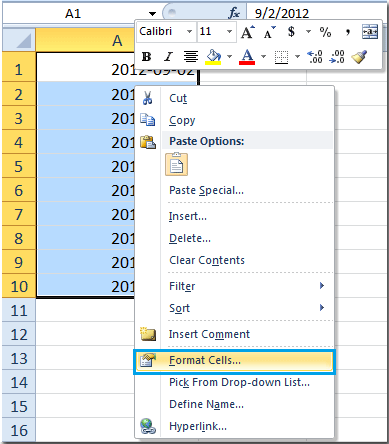
1. Select the range you want to change date format, then right-click and choose Format Cells from the context menu. See screenshot:
2. In the Format Cells dialog box:
- Select the Number tab.
- Choose Date from the category list.
- Specify which country’s date formats you want to use from Locale (location) drop-down list. To apply the standard US format, select "English (United States)".
- Select the date format from Type list. The mm/dd/yyyy format is the default for the United States.
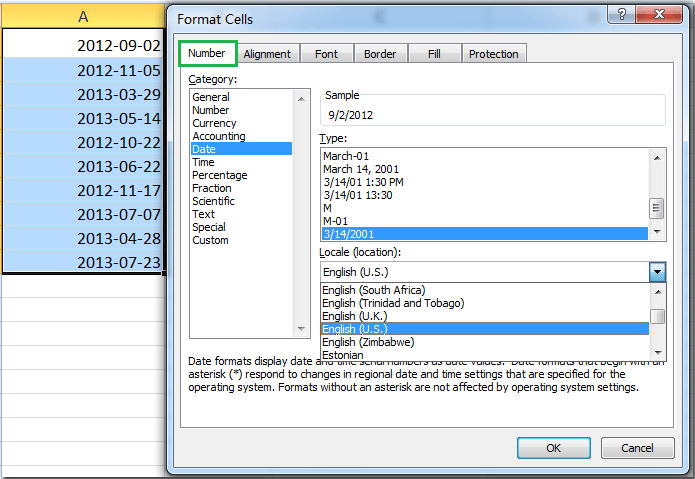
3. Click OK. It will apply the date format to the range. See screenshots:

To define your own custom date format, in the Format Cells dialog box click the Custom option in the Category list, then enter a date pattern (such as mm/dd/yyyy or ddd, mmmm, dd, yyyy) into the Type field. This is helpful if you require a specific format for reports or imported data.
● Date Format Codes
Here are some common codes used in Excel to format dates:
| Format Code | Description | Example |
|---|---|---|
| d | Day of the month as numbers without leading zeros | 1, 2, 10, 31 |
| dd | Day of the month as numbers with leading zeros | 01, 02,10, 31 |
| ddd | Day of the week as a three-letter abbreviation | Mon, Tue |
| dddd | Full day of the week name | Monday, Tuesday |
| m | Month as a number without a leading zero | 1, 12 |
| mm | Month as a number with leading zeros | 01, 12 |
| mmm | Month as a three-letter abbreviation | Jan, Dec |
| mmmm | Full month name | January, December |
| yy | Last two digits of the year | 23 (for2023) |
| yyyy | Full four-digit year | 2023 |
● Example Custom Formats
- mm/dd/yyyy: This is a typical American format, displaying the month, day, and year in numerical form with slashes.
- dd-mm-yyyy: Common in many parts of the world, this format uses dashes instead of slashes.
- dddd, mmmm dd, yyyy: This format spells out the day of the week and the month, followed by the numeric day and the full year, which is useful for printed documents where clarity is essential.
Quickly apply any date formats with Kutools for Excel
Managing large datasets or updating date formats across multiple sheets can become tedious using standard Excel features alone. Kutools for Excel introduces batch date format conversion capabilities, allowing users to quickly standardize date presentation throughout the workbook. This tool is especially useful when you frequently handle data from varying sources or work collaboratively with teams in different regions.
1. Select the range you want to change date formats in your worksheet, then click Kutools > Format > Apply Date Formatting. See screenshot:

2. In the Apply Date Formatting dialog box, choose the proper date format you need. Here, you can directly select the American style (mm/dd/yyyy), or define your own custom format for specialized reporting. Then click the OK or Apply button to complete the conversion.

The date format of all selected cells will now be updated as specified.
Kutools also handles conversion of text-based dates or regional formats, streamlining the process even further. If you encounter cells that remain unchanged, it is recommended to use the “Convert to Date” utility as shown below, which specifically addresses text-formatted dates and ambiguous date entries.
One click to convert non-date formats to real date formats
Transform your data with a single click using the Convert to Date feature from Kutools for Excel! Struggling with non-date formatted data scattered across your spreadsheets? Kutools streamlines your data management by instantly converting text-based dates into real, actionable date formats. Say goodbye to the hassle of manual conversions and errors that slow down your workflow. Detailed information of Kutools for Excel... Free trial...
Change date formats with formula
For users who want more control or need to automate date reformatting, Excel's formulas provide a flexible alternative to manual formatting. This approach is especially useful for converting date strings, correcting format inconsistencies, or producing results that remain dynamic with source data changes. The formula method is recommended when you need to convert imported text dates or want to retain the original column for reference.
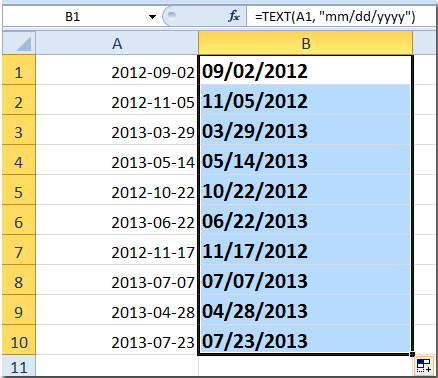
1. In a blank cell, input the formula:
=TEXT(A1,"mm/dd/yyyy")For example, enter this formula in cell B1 if your date data is in cell A1. This transforms the value in A1 into the mm/dd/yyyy format, even if the original date is recognized in a different style.
2. Press Enter. Next, select cell B1 and drag the fill handle down or across to apply the formula to other necessary cells. This will populate a new column with the dates in American format. See screenshot:

DATEVALUE or custom parsing as needed.The guide details methods to convert international date formats to American standards in Excel. It introduces Excel's Format Cells feature, formula and the Convert to Date utility from Kutools for Excel. These tools allow users to adapt date formats quickly. If you're interested in exploring more Excel tips and tricks, our website offers thousands of tutorials.
Related articles:
- Quickly convert birthdate to age in Excel
- Change multiple dates to day of week
- Convert date to weekday name or month name
- Remove time from date
- Remove year from date
Best Office Productivity Tools
Supercharge Your Excel Skills with Kutools for Excel, and Experience Efficiency Like Never Before. Kutools for Excel Offers Over 300 Advanced Features to Boost Productivity and Save Time. Click Here to Get The Feature You Need The Most...
Office Tab Brings Tabbed interface to Office, and Make Your Work Much Easier
- Enable tabbed editing and reading in Word, Excel, PowerPoint, Publisher, Access, Visio and Project.
- Open and create multiple documents in new tabs of the same window, rather than in new windows.
- Increases your productivity by 50%, and reduces hundreds of mouse clicks for you every day!
All Kutools add-ins. One installer
Kutools for Office suite bundles add-ins for Excel, Word, Outlook & PowerPoint plus Office Tab Pro, which is ideal for teams working across Office apps.





- All-in-one suite — Excel, Word, Outlook & PowerPoint add-ins + Office Tab Pro
- One installer, one license — set up in minutes (MSI-ready)
- Works better together — streamlined productivity across Office apps
- 30-day full-featured trial — no registration, no credit card
- Best value — save vs buying individual add-in