How to quickly show & hide gridlines in Excel?
Sometimes, gridlines may disappear from Microsoft Excel after some operations, which makes our work in spreadsheet inconveniently. The gridlines may be hidden in some situations. And this article will talk about how to quickly show & hide gridlines in Excel.
Check the Gridlines option in Excel
Show gridlines with Kutools for Excel
Remove background color from Excel
Show gridlines |
Hide gridlines |
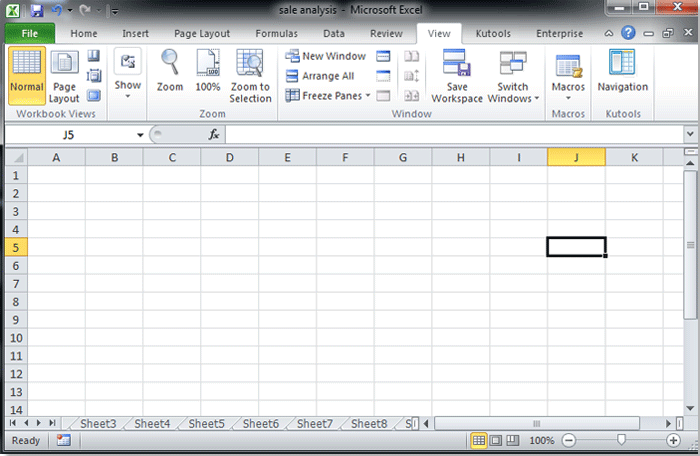

Check the Gridlines option in Excel
Show or hide gridlines in Excel by checking or unchecking the "Gridlines" check box in "Show" group under "View" tab is the most normally way we use in daily work. See screenshot:

Check the Gridlines in View Options with Kutools
"Kutools for Excel" is a powerful tool collection for Microsoft Excel, which provides various tools to help you work easier in Microsoft Excel. Its "View Options"utilitycan help you turn on or off all kinds of setting from spreadsheets, including gridlines.
"Kutools for Excel": with more than 300 handy Excel add-ins, free to try with no limitation in 30 days. Get it Now
Please apply the utility by clicking "Kutools" > "Show / Hide" > "Views Options". See screenshot:

Check the "Grid Lines" option in the "View Options" dialog, and click the "Ok" button settings, and then the gridlines will come out in spreadsheets. See screenshot:

The "View Options" makes it possible to show or hide most of Microsoft Excel settings quickly, such as Inner Tabs, Formula Bar, Status Bar, Windows in Taskbar, Gridlines, Page Breaks, Display Zeros, Vertical Scrollbar, Horizontal Scrollbar, Sheet Tab, … etc. It will save your time in looking for these setting when you need to show or hide them.
For more detail information about "View Options", please go to this page: View Options.
Remove background color from Excel
The gridline does not show sometimes even we have checked the "Gridlines" option under "View" Tab. That is because you fill the cell range with white color, which hides the gridlines. Please correct it with following steps:
- Step 1: Go to the "Font" group under "Home" tab;
- Step 2: Click the "Fill Color" button;
- Step 3: Check the "No Fill" command item. See screenshot:

Best Office Productivity Tools
Supercharge Your Excel Skills with Kutools for Excel, and Experience Efficiency Like Never Before. Kutools for Excel Offers Over 300 Advanced Features to Boost Productivity and Save Time. Click Here to Get The Feature You Need The Most...
Office Tab Brings Tabbed interface to Office, and Make Your Work Much Easier
- Enable tabbed editing and reading in Word, Excel, PowerPoint, Publisher, Access, Visio and Project.
- Open and create multiple documents in new tabs of the same window, rather than in new windows.
- Increases your productivity by 50%, and reduces hundreds of mouse clicks for you every day!
All Kutools add-ins. One installer
Kutools for Office suite bundles add-ins for Excel, Word, Outlook & PowerPoint plus Office Tab Pro, which is ideal for teams working across Office apps.





- All-in-one suite — Excel, Word, Outlook & PowerPoint add-ins + Office Tab Pro
- One installer, one license — set up in minutes (MSI-ready)
- Works better together — streamlined productivity across Office apps
- 30-day full-featured trial — no registration, no credit card
- Best value — save vs buying individual add-in