Kutools for Excel - Streamline Your Excel Tasks
- 300+ powerful features
- 30-day free trial with full access to all features
- Free updates for 2 years
- One-time purchase, lifetime use
- 60-day money back guarantee
- Supports over 40 interface languages
- Permanently free AI features (unlimited use after the trial)

300+
Pro Features

1,500+
Work Scenarios

80,000+
Trusted Businesses

500,000+
Satisfied Users
Popular Features
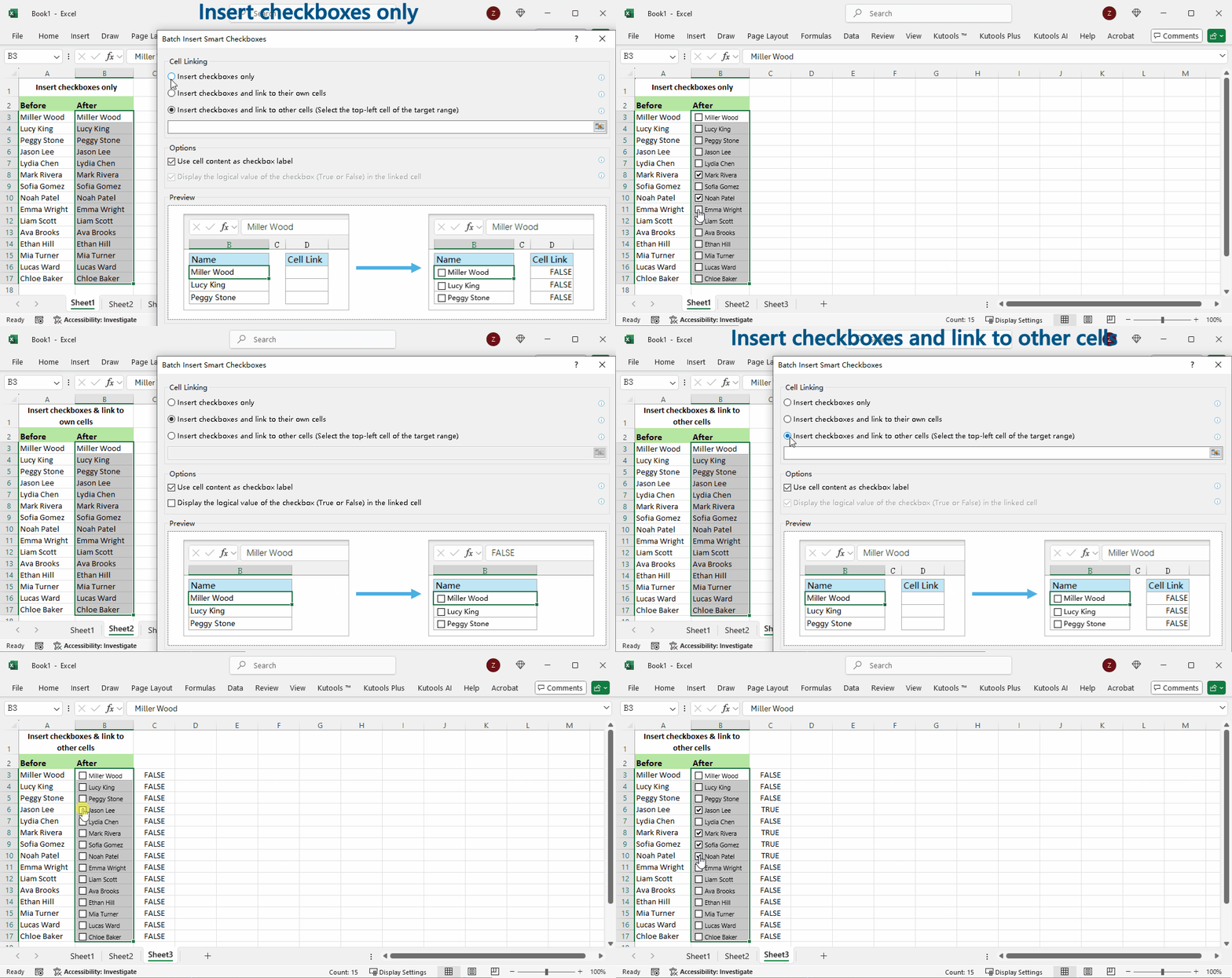
Batch Insert Smart Checkboxes in Seconds
Generate hundreds of checkboxes in one go and link them to cells—even across sheets/workbooks according to your needs. View tutorial...
One-click Date Picker
Click a cell to reveal a calendar icon; pick a date and it fills the active cell. Enter dates faster and more accurately. View tutorial...

Find Duplicates
Easily detect and manage duplicate entries in your Excel sheets based on one or more columns—excluding the first instance. Just a few clicks to clean up your data. View tutorial...

Kutools AI Aide
A built-in AI assistant that helps you work smarter in Excel - no coding required. View tutorial...

Merge Cells Without Losing Data
Merge multiple cells, columns, or rows without losing any content—keep all your data intact and well-formatted. View tutorial...

Reading Layout
Highlight the active row and column to stay oriented while working in large spreadsheets—no more losing your place. View tutorial...

Drop-down List Extension Toolset
Take Excel's built-in drop-down lists to the next level with a set of smart tools. Whether you're building forms or managing data input, this toolset helps you create flexible, user-friendly lists with ease. View tutorials...

Text Tools
Handle complex text operations in Excel with ease. This powerful suite offers 12 features and over 50 options to help you clean, format, and manipulate text in just a few clicks. View tutorials...

Combine Data from Multiple Worksheets/Workbooks into One
Combine data effortlessly from different workbooks or worksheets with just a few clicks. Merging data is no longer a nightmare. View tutorials...




Reasons to Get Kutools
Packed with 300+ tools, Kutools offers everything you expect. Many functions are exclusive and designed for real productivity.
Handles large datasets (100+ million cells) smoothly. All operations support undo, ensuring stable and error-free performance.
As stable as Excel itself - no malicious attacks or data leaks. No user data is collected, ensuring a safe experience.
Supports 44 languages like Microsoft Office. Clean, intuitive interface makes it easy for both beginners and power users.
Free support, detailed user guides, and step-by-step tutorials help you get the most out of every feature.
Continuously improved for over a decade with new tools and enhancements. Easy to install, uninstall, and upgrade anytime without hassle.
Lifetime access at a great price, with 2 years of free upgrades - delivering exceptional value for your investment.
Engage with other users through forums and article comment sections. Share feedback, ask questions, and get tips.
Overview of All Features



History of Kutools
Kutools for Excel is more than just an add-in - it's a well-known tool with a history spanning over ten years. First launched in 2008, it was carefully developed by a team of over 10 experts. After years of continuous refinement, Kutools has evolved into a powerful Excel add-in. Today, it’s trusted by more than 500,000 users worldwide, including over 80,000 businesses, underscoring its credibility and popularity. Designed for both individuals and enterprises, Kutools offers powerful, easy-to-use, and reliable features with excellent support. Take your Excel experience to the next level with Kutools - boost productivity and save valuable time!
Here From Our Satisfied Customers
Explore More Kutools Benefits
Complete multi-step or advanced Excel tasks easily. Kutools streamlines everything into a few simple clicks.
Reduce repetitive tasks and improve productivity with smartly integrated, commonly used Excel functions.
Intuitive interface designed around user habits makes Kutools easy to start using - no learning curve.
Fully compatible with multiple Excel versions, ensuring accessibility for all Excel users.
Offers multilingual (44+ languages) support to make it easier for global users to use the tool effectively.
Get the most out of Kutools with online guides, step-by-step tutorials, and practical usage tips.
Frequently Asked Questions