How to show or hide Horizontal & Vertical scroll bar in Microsoft Excel?
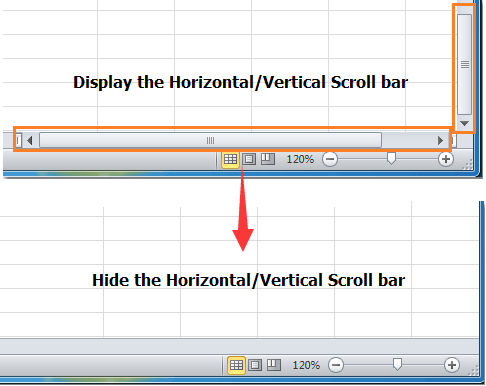
In Microsoft Excel, both horizontal and vertical scroll bars are available by default to help you easily navigate through your worksheet, especially when dealing with large datasets that extend beyond the visible window. However, for certain scenarios, you might want to temporarily hide these scroll bars—for instance, to maximize visible workspace for reporting, for a more streamlined presentation, or to ensure focus on a specific worksheet area. Conversely, you may need to enable hidden scroll bars again if navigation becomes difficult without them. This article outlines several practical methods you can use to display or hide the horizontal and vertical scroll bars in Excel, along with explanations of when each method could be preferred and common points to keep in mind.
Show or hide Horizontal/Vertical Scroll bar with Excel Options
Show or hide Horizontal/Vertical Scroll bar with VBA code
Show/hide Horizontal/Vertical Scroll bar with Kutools for Excel
Show or hide Horizontal/Vertical Scroll bar with Excel Options
To manage the display of Excel’s scroll bars through the Excel Options menu, you can adjust detailed display preferences for the current workbook. This approach is ideal for most users and situations, especially if you are looking for a straightforward, no-code solution that applies only to the active workbook instead of all your Excel files.
- Click the File tab located in the top-left corner of the Excel window.
- From the left-hand panel, click Options to open the "Excel Options" dialog box.
- In the Excel Options dialog box, navigate to the Advanced category in the left sidebar.
- Scroll down to the Display options for this workbook section. Check or uncheck the boxes labeled Show horizontal scroll bar and Show vertical scroll bar as needed. If you enable these options, the respective scroll bar will appear in your worksheet window; if you disable them, the scroll bar will be hidden. Refer to the following screenshot for a visual reference:
- Click OK at the bottom of the dialog box to confirm your choices and apply changes. The worksheet will immediately update to reflect your preference.

Tips and points to note: These display settings only affect the current workbook, not all Excel workbooks by default. If you regularly use templates or customized workbooks, you may need to repeat the process for each file. Some company or shared workbooks may have restrictions on these options, depending on administrative settings or shared workbook restrictions. Additionally, hiding scroll bars can make navigation challenging in very large or complex worksheets, so consider your use-case carefully.
Applicable scenarios: This method is best for users who prefer to avoid any VBA or third-party add-ins, and when changes are needed only for specific files. It’s particularly helpful for preparing clean worksheet screenshots, printing, or minimizing distractions.
Show or hide Horizontal/Vertical Scroll bar with VBA code
In addition to manual configuration via the Excel Options menu, you can also use VBA (Visual Basic for Applications) code to automate the process of hiding or showing horizontal and vertical scroll bars. This is especially useful for advanced users, for automating batch operations on multiple workbooks, or when you want to toggle scroll bar visibility via a button or shortcut.
Compared to the Options menu, using VBA allows you to create macros for repetitive tasks, save time in managing multiple files, or integrate scroll bar toggling into larger automation routines. However, make sure macros are enabled and that you save unsaved work beforehand to avoid any unexpected changes.
To apply this solution, follow these steps carefully:
- Hold the ALT + F11 keys simultaneously to open the Microsoft Visual Basic for Applications (VBA) editor window.
- In the VBA editor, click Insert > Module. This will create a new module where you can paste the required code.
- Copy and paste the appropriate VBA macro below into the new module window according to whether you want to hide or show the scroll bars.
VBA code to hide the horizontal and vertical scroll bar:
Option Explicit
Private Sub Workbook_Activate()
  With ActiveWindow
    .DisplayHorizontalScrollBar = False
    .DisplayVerticalScrollBar = False
  End With
End Sub
VBA code to show the horizontal and vertical scroll bar:
Private Sub Workbook_Deactivate()
  With ActiveWindow
   .DisplayHorizontalScrollBar = True
   .DisplayVerticalScrollBar = True
  End With
End Sub
After pasting the code:
- Press the F5 key or click the "Run" button within the VBA editor to execute the macro. The visibility of scroll bars will immediately update in the active workbook.
Tips and precautions: Always remember to save any important workbook prior to running macros to prevent data loss. Some environments (such as computers with strict security settings or restricted macros) may block VBA—ensure you have permission to run macros.
Advantages & limitations: This method is best for users comfortable with VBA, those automating workflows, or when changes must quickly apply to multiple workbooks. On the downside, using VBA may not be permitted in highly secured networks or for users unfamiliar with macro use.
Troubleshooting tips: If the macro does not work, double-check that macros are enabled in your Excel settings. If an error message appears, ensure the VBA code is pasted in a new module and not directly into a worksheet or workbook code window. For persistent issues, restart Excel or check macro security settings under File > Options > Trust Center > Macro Settings.
Show or hide Horizontal/Vertical Scroll bar with Kutools for Excel
For those looking for a more graphical, one-click solution that consolidates a wide range of view and interface controls in one panel—including options beyond just scroll bars— the View Options utility found in Kutools for Excel provides a convenient and efficient approach. This is ideal for users who frequently adjust worksheet interface elements and wish to access all related settings without navigating through multiple dialog boxes or writing macros.
1. Click the Kutools tab, then go to Show & Hide group, and select View Options. You’ll see a dialog similar to the below:

2. In the View Options dialog box, select or deselect the Vertical Scrollbar and Horizontal Scrollbar checkboxes according to your current needs, and then click OK.

Practical notes and tips: Kutools for Excel streamlines managing a variety of interface elements, offering a user-friendly one-stop window for toggling not only scroll bars, but also features such as the Formula Bar, Status Bar, Sheet Tabs, Gridlines, Zero Values, Page Breaks, and more. This makes it especially convenient when configuring a workbook for others or standardizing the display across multiple worksheets. If you often prepare reports, dashboards, or templates, or share files with others needing uniform appearance, this method can save significant setup time.
Additional insights: Options modified via Kutools are easy to reverse—simply revisit the View Options utility to reset, with no need for VBA code nor navigation through scattered Excel Option dialogs. For first-time users, Kutools offers a highly visual and intuitive environment compared to native setting panels.
Potential limitations: As Kutools is an add-in, it must be installed before use. In corporate settings, permissions may be required.
Kutools for Excel - Supercharge Excel with over 300 essential tools, making your work faster and easier, and take advantage of AI features for smarter data processing and productivity. Get It Now
Show/hide Horizontal/Vertical Scroll bar with Kutools for Excel
Related articles:
- Show or hide formula bar
- Display or hide row & column headers
- Display Selection Pane
- Display or hide status bar
- Display or hide sheet tabs
- Show & hide gridlines
- Hide page breaks
- Display or hide zero values in cells of Microsoft Excel
Best Office Productivity Tools
Supercharge Your Excel Skills with Kutools for Excel, and Experience Efficiency Like Never Before. Kutools for Excel Offers Over 300 Advanced Features to Boost Productivity and Save Time. Click Here to Get The Feature You Need The Most...
Office Tab Brings Tabbed interface to Office, and Make Your Work Much Easier
- Enable tabbed editing and reading in Word, Excel, PowerPoint, Publisher, Access, Visio and Project.
- Open and create multiple documents in new tabs of the same window, rather than in new windows.
- Increases your productivity by 50%, and reduces hundreds of mouse clicks for you every day!
All Kutools add-ins. One installer
Kutools for Office suite bundles add-ins for Excel, Word, Outlook & PowerPoint plus Office Tab Pro, which is ideal for teams working across Office apps.





- All-in-one suite — Excel, Word, Outlook & PowerPoint add-ins + Office Tab Pro
- One installer, one license — set up in minutes (MSI-ready)
- Works better together — streamlined productivity across Office apps
- 30-day full-featured trial — no registration, no credit card
- Best value — save vs buying individual add-in